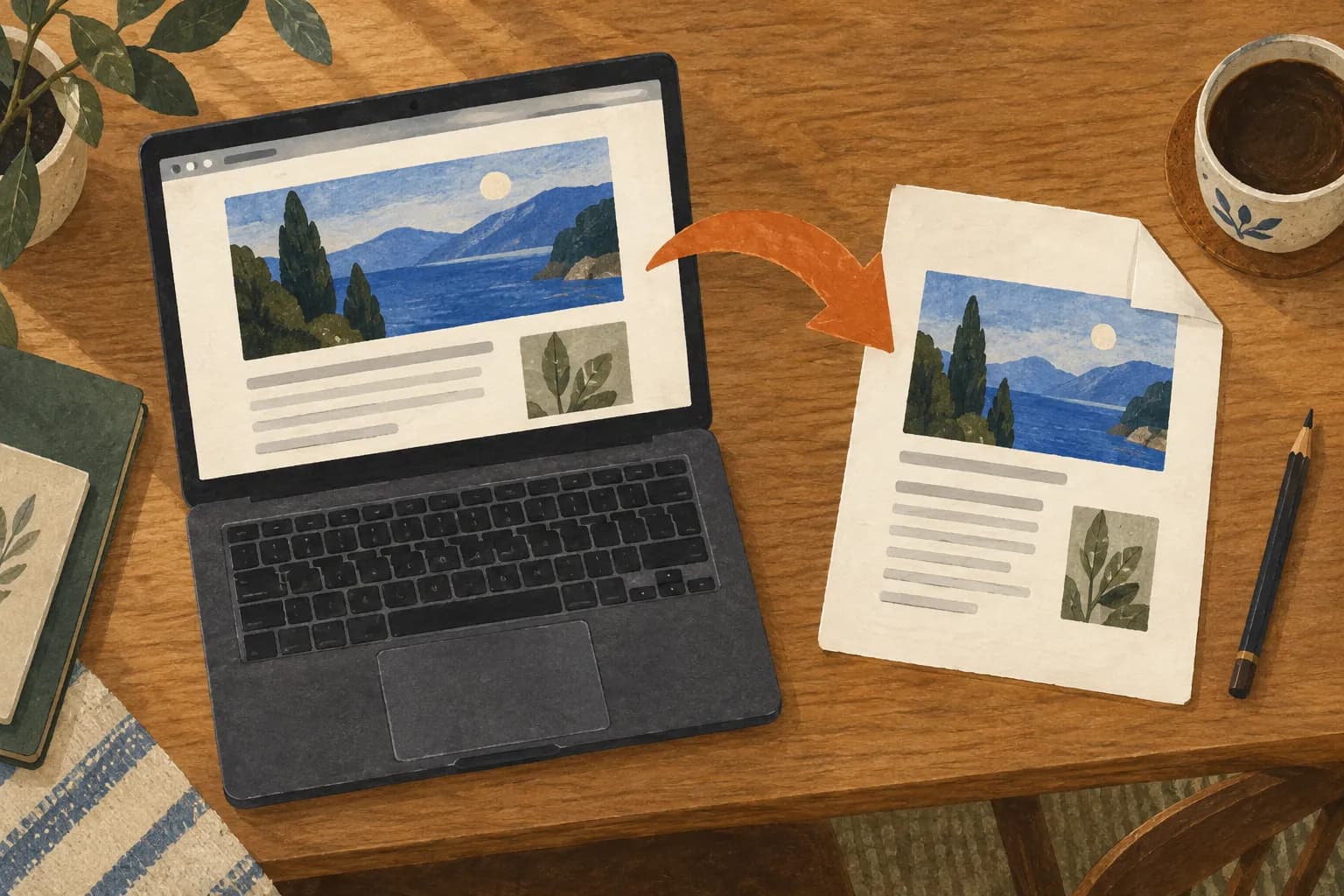
To save a web page as a PDF on a computer, open the print dialog (Ctrl + P on Windows, Command + P on a Mac) and choose Save as PDF instead of a printer. In Safari on a Mac, choose File > Print, then PDF > Save as PDF.
The steps come from Google Chrome, Microsoft and Apple official help, checked on October 9, 2026. Menu names can change with the browser version.
This guide is part of A guide to saving articles and reading them later, which organizes every guide on the topic.
How do I save a web page as a PDF in Chrome?
According to Chrome Help on printing from a computer:
- Open the page in Chrome.
- Click File > Print, or press Ctrl + P (Windows and Linux) or ⌘ + P (Mac).
- In the window that appears, choose Save as PDF as the destination and adjust the print settings.
- Click Save and choose where to keep the file.
The same help page shows how to send the PDF to Google Drive: with the Save to Google Drive extension installed, pick Save to Google Drive as the destination; without it, save as PDF and upload the file.
How do I do it in Microsoft Edge?
According to Microsoft's help on printing in Edge, you open the print dialog with Settings and more > Print, with Ctrl + P (Windows) or Command + P (Mac), or by right-clicking the page and choosing Print. In that dialog, choose Save as PDF as the printer and save.
Microsoft's list of known Edge issues mentions both PDF options: when "Microsoft Print to PDF" failed in Edge 154, Microsoft's workaround was to choose the "Save As PDF" printer in the standard dialog, and it says the issue was fixed in version 154.0.4258.48. If one of the two fails, try the other.
And in Safari on a Mac?
According to Apple's Safari guide on printing or creating a PDF:
- Open the page in Safari and choose File > Print.
- In the options pop-up menu, choose Safari to include the page's background or show the web address and date in the headers and footers. If you do not see that menu, click Show Details.
- Click PDF at the bottom of the dialog.
The Mac User Guide completes the step: choose Save as PDF, enter a name and a location. Security Options lets you require a password to open, copy from or print the PDF.
How do I add the web address and date to the PDF?
A PDF that says where and when it came from is easier to cite and to compare later. In Safari, Apple's guide lets you show the web address and date in the headers and footers (step 2 above). In Edge, Microsoft explains that More settings > Headers and footers adds the current date to the header and the page number to the footer. In the same menu, Background graphics includes the page background if the preview looks different from the site.
Before you save: three checks
These checks are an original KeepAnalog suggestion, not steps from Google, Microsoft or Apple:
- Look through the preview before saving: long pages, expandable sections or images may not come out the way you see them on screen.
- Turn on the headers and footers where your browser offers them, so the PDF keeps the address and the date.
- Name the file with the date and the site: a PDF called "article" is hard to find again in a month.
What next?
To do the same on your phone, see How to save a web page as a PDF on your phone. If you want to print it on paper without ads and menus, How to print an article without ads shows the official routes, and if you want a public copy anyone can check, see How to save a web page to the Wayback Machine. And if you prefer paper, KeepAnalog turns eligible public links chosen by one person (HTML pages or PDFs) into a monthly printed issue. Nothing is printed or charged until that person approves the issue. For now, KeepAnalog's pilot is in Argentina only, with no delivery in the United States.