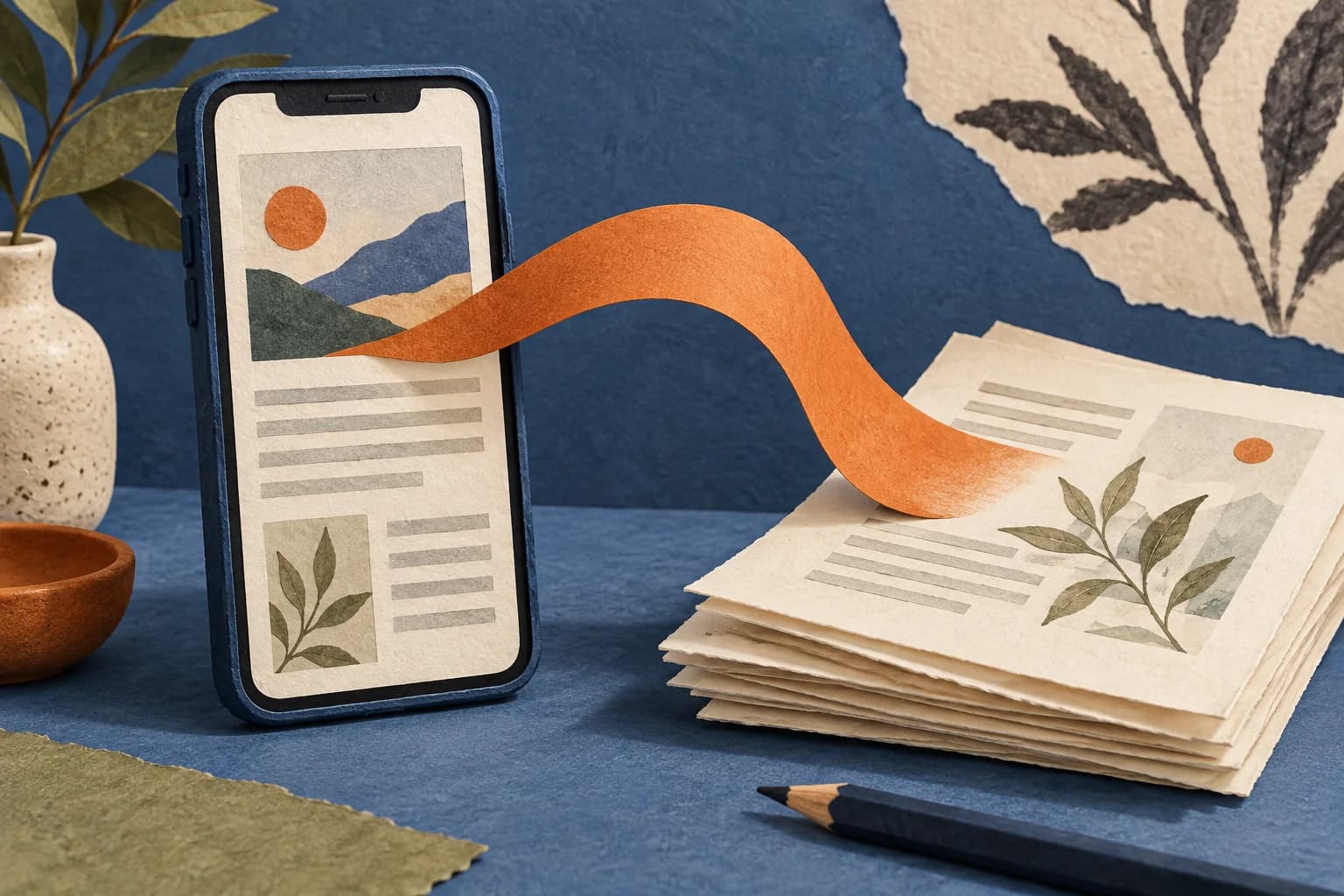
On Android, in Chrome: More > Share > Print, choose Save as PDF as the printer and tap Print. On iPhone, in Safari: Share > Markup and, when you finish, Save File To—or take a screenshot, tap the thumbnail, choose Full Page, and save the PDF. On a computer, Chrome’s print dialog can save the page as a PDF too; see the computer guide linked below.
The steps come from Google Chrome Help and Apple’s iPhone User Guide, checked on October 13, 2026. Button names can change with the phone’s version and language.
This guide is part of A guide to saving articles and reading them later, which organizes every guide on the topic. For Keep Analog terms such as “eligible link” and “issue,” see the Keep Analog glossary.
How do I save a web page as a PDF on Android?
According to Chrome Help for Android:
- Open the page in the Chrome app.
- At the top right, tap More > Share.
- Select Print. The down arrow changes the print settings.
- At the top, choose Save as PDF as the printer.
- Choose where to save the file and tap Print.
The same help covers paper printing: instead of Save as PDF, pick a printer that can get data over Wi-Fi or a mobile network.
And on iPhone, in Safari?
The iPhone User Guide calls it “annotate and save a webpage as a PDF”:
- Open the page in Safari and tap Share (depending on your tab layout, it is in the toolbar or inside the more-options menu).
- Tap Markup. If you want, highlight or write notes with the tools.
- When you finish, tap the share/save control shown in the guide, then choose Save File To.
- Enter a name and tap Save.
Full-page PDF from a screenshot
Another route is a screenshot. According to Apple’s guide to taking a screenshot on iPhone, you can capture a full page beyond the edge of the screen:
- Take a screenshot (on iPhone with Face ID: side button + volume up; with a Home button: Home + side or top button).
- Tap the thumbnail that appears in the lower left.
- Tap Full Page. Drag on the preview to see more of the page—for example, an entire webpage in Safari.
- Use the handles if you want only part of the page, then share or save the result (for example Save to Files) as a PDF.
And in Chrome on iPhone?
Chrome Help for iPhone documents only printing with AirPrint: Share > View more > Print, choose your settings and tap Print. It does not describe a Save as PDF option; for a file, use the Safari steps.
How do I save as PDF in Chrome on a computer?
On a computer, according to Chrome Help on printing from Chrome:
- Open the page in Chrome.
- Choose File > Print, or press Ctrl + P (Windows/Linux) or ⌘ + P (Mac).
- In the window that appears, select the destination and your print settings, then confirm.
Many computers list Save as PDF among the destinations in that dialog. For the full computer walkthrough (Chrome, Safari and Edge), see How to save a web page as a PDF on a computer.
What if the page is already a PDF?
In Safari, according to the iPhone User Guide: open the PDF, tap Share > Save to Files, enter a name and tap Save. On Android, a PDF open in Chrome can also be saved with the print steps above, because the help covers files as well as pages.
Before you save: three checks
These checks are an original KeepAnalog suggestion, not steps from Google or Apple:
- Cut the clutter: if the page is full of ads, try a reading view first, as explained in How to print an article without ads.
- Name the file well: date, site and title, so you can find it later.
- Keep the link too, because the page can change or disappear; see When links disappear.
What next?
If you want to read without a signal, How to save web articles to read offline compares other options; for newsletters there is How to save a newsletter as a PDF, and the PDF can go to an e-reader with How to send web articles to Kindle. If you prefer paper, KeepAnalog takes eligible public links that one person chooses (HTML pages or PDFs) and turns them into a monthly printed issue. The preview shows each piece’s title, byline when there is one, and source site, and nothing is printed or charged until the person approves the issue. For now, the pilot is in Argentina only, with no delivery in the United States.