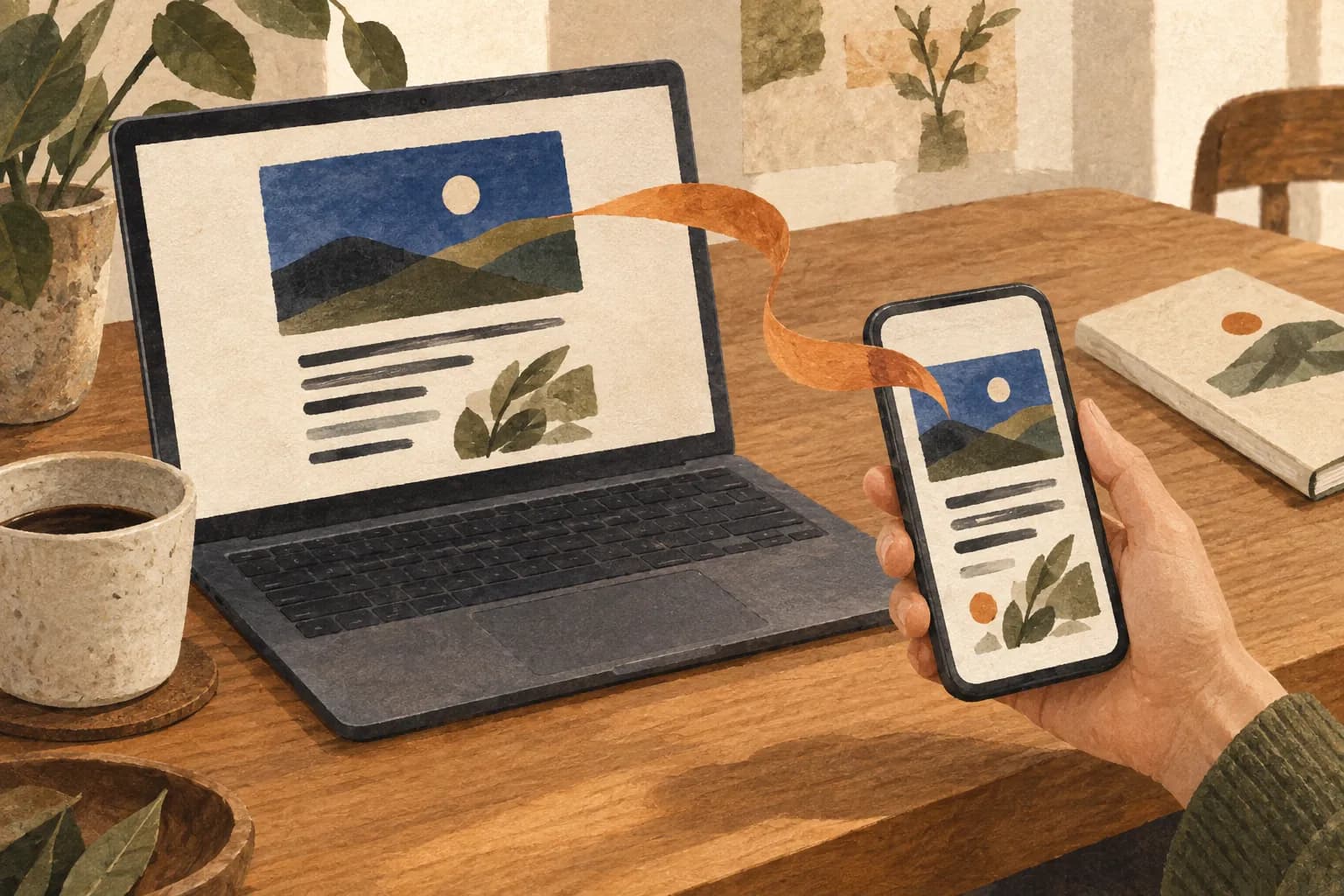
To send a web page from your computer to your phone, use a feature you already have: in Chrome, sign in with the same Google Account on both devices and choose Send to your devices; between a Mac and an iPhone, use Handoff or AirDrop; or scan a QR code of the page with your phone.
The steps come from Google Chrome Help and Apple Support pages, checked on October 11, 2026. Menu names can change with the browser or system version.
This guide is part of A guide to saving articles and reading them later, which organizes every guide on the topic.
How do I send a page with Chrome?
According to Google's Chrome Help on sharing tabs, first sign in to Chrome with the same Google Account on your computer and on your phone. Then:
- Open Chrome on your computer and go to the page you want to send.
- Select More > Cast, save, and share > Send to your devices. You can also right-click the tab or the page and select Send to your devices.
- Select your phone.
If notifications are on, your phone shows a notification that a tab was shared, and Google says the tab also opens automatically in Chrome on the device you chose.
Can I send it the other way, from the phone to the computer?
Yes, with the same account. On Android, the Android version of that help page says to tap More > Share > Send to your devices and pick the device. On an iPhone or iPad, the iPhone & iPad version says to tap Share > Send to your devices. On both, you can also long-press the address bar or a tab in the tab switcher.
What if my phone isn't signed in to Chrome?
Use a QR code. On the computer, select More > Cast, save, and share > Create QR code, then scan the code with your phone's camera. The same Chrome Help page says you can also copy the QR link or download the code.
How do I do it between a Mac and an iPhone?
Apple's Handoff guide lists Safari among the apps that work with Handoff. To use it:
- Turn on Bluetooth and Wi-Fi on both devices and sign in to iCloud with the same Apple Account.
- Check that Handoff is on (it is by default). On a Mac with macOS Ventura or later: System Settings > General > AirDrop & Continuity (or AirDrop & Handoff) > Allow Handoff between this Mac and your iCloud devices. On the iPhone: Settings > General > AirPlay & Continuity (or AirPlay & Handoff) > Handoff.
- Open the page in Safari on the Mac and keep it in front, with the Mac unlocked and near the iPhone.
- On the iPhone, open the App Switcher by swiping up from the bottom of the screen and tap the app banner at the bottom.
If you would rather send the page outright, Apple's AirDrop guide for Mac says to open the item, click the Share button in the toolbar, then click AirDrop and select the recipient. Only nearby devices with Wi-Fi and Bluetooth turned on appear.
Before you send it: three checks
These checks are an original KeepAnalog suggestion, not steps from Google or Apple:
- Decide when you will read it: a page sent to your phone with no plan becomes one more open tab; pick a moment, like the commute home.
- Keep a copy if the page might change: if it matters, save it as a PDF too, so the text is still there if the page is edited or removed.
- Note why you sent it: one line in your notes app ("for the Tuesday meeting") makes the link easier to find and to judge later.
What next?
If you will read without a connection, see How to save web articles to read offline; for a copy on the phone itself, How to save a web page as a PDF on your phone; and to read it without clutter, Reading mode in Chrome, Edge and Safari. And if you prefer paper, KeepAnalog turns eligible public links chosen by one person (HTML pages or PDFs) into a monthly printed issue. Nothing is printed or charged until that person approves the issue. For now, KeepAnalog's pilot is in Argentina only, with no delivery in the United States.