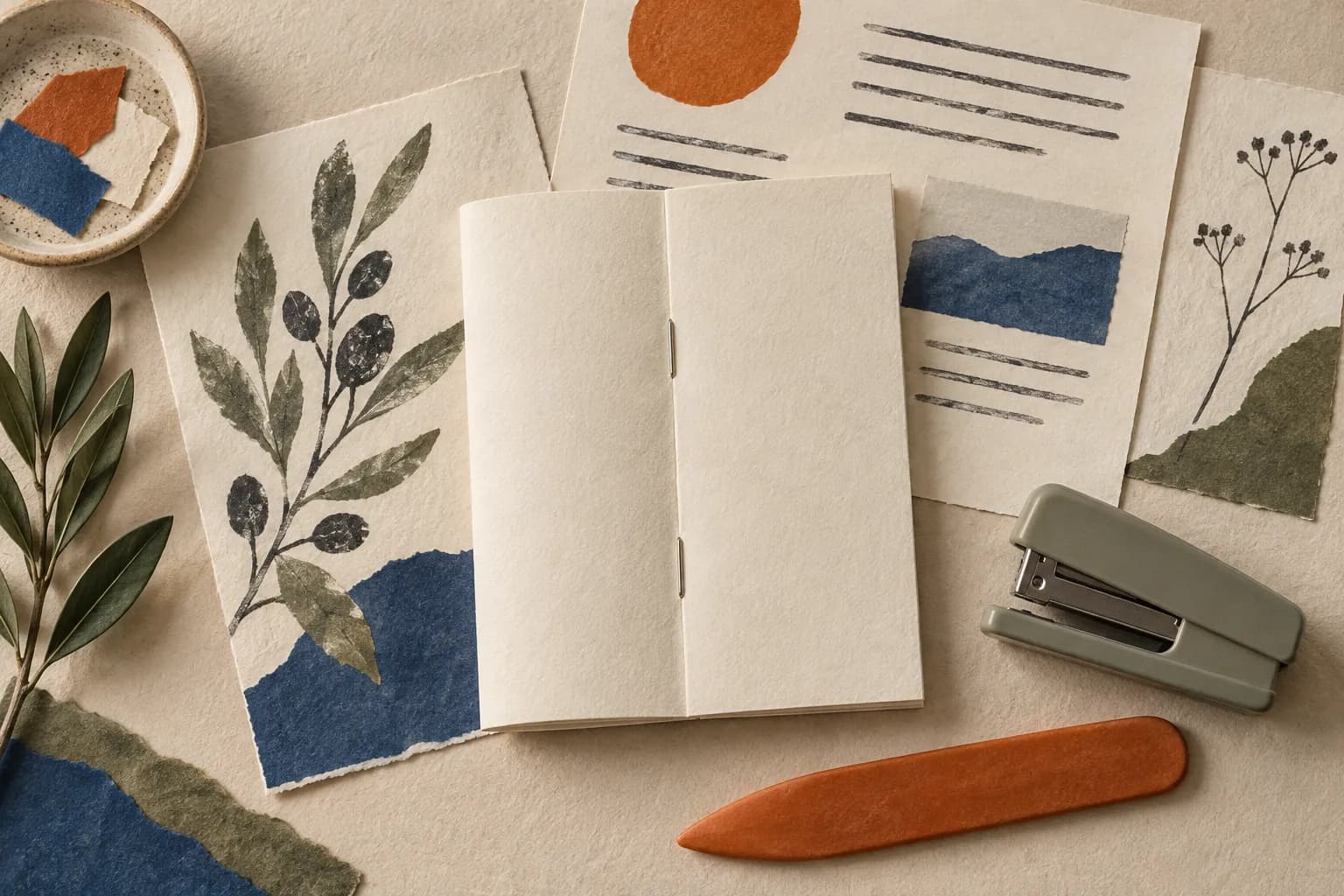
To print a booklet from a PDF, open the file in Adobe Acrobat or Acrobat Reader, choose Print this file, select Booklet under Page Sizing & Handling, and pick how to print both sides. On a Mac you can also use Preview’s print dialog: under Layout, choose Print as Booklet when your printer supports two-sided printing. Acrobat (or Preview) arranges two pages per side so that, after you fold and staple the sheets, they read in order.
The steps come from Adobe’s, Apple’s and Microsoft’s official help, checked on October 13, 2026.
This guide is part of the Guide to saving articles to read later, which organizes every guide on the topic. For Keep Analog terms such as “eligible link” and “issue,” see the Keep Analog glossary.
How do I print a booklet from a PDF in Acrobat?
According to Adobe’s help on printing booklets with Acrobat or Reader:
- Open the file and select Print this file at the upper right.
- Under Pages to Print, keep All or set a range in Pages.
- Under Page Sizing & Handling, select Booklet.
- In Booklet subset, choose Both sides if your printer prints duplex on its own, or Front side only and then Back side only if it does not.
- Leave the Sheets from numbers as they are: Acrobat works out which sheets are needed.
- Under Binding, choose Left, Right, Left (Tall) or Right (Tall).
- Select Auto-rotate pages within each sheet, then Print.
Adobe notes that this also applies to Acrobat Reader. After printing, fold the sheets in half and staple along the center fold.
How do I print a booklet from a PDF on a Mac (Preview)?
According to Apple’s Mac User Guide on printing multiple pages on a sheet:
- Open the PDF (Preview works even if you do not have the app that created the file).
- Choose File > Print, or press ⌘ + P.
- Scroll down in the Print dialog and click Layout.
- From Pages per Sheet, choose how many pages go on each sheet. If your printer can print two-sided pages, you may see Print as Booklet. That option uses a two-up layout with saddle-stitched signatures you can staple through the center.
- Set Layout Direction if you are printing more than one page per sheet, then click Print.
Apple’s Preview printing guide also covers choosing pages from thumbnails and scaling before you print.
How many sheets will it take?
According to Adobe, each sheet printed on both sides holds four pages of the PDF. Its example: a 16-page PDF with All selected prints on sheets 1 through 4. For a long document, Adobe suggests dividing it into smaller groupings with the Pages range and printing each one separately.
What if my printer cannot print on both sides?
Adobe’s booklet help says that without automatic duplex printing, you first print the fronts with Front side only, reload those sheets and print the backs with Back side only. In its Word help, Microsoft adds that you flip the sheets according to your printer’s instructions.
What if the document is in Word?
Word has its own booklet layout. According to Microsoft’s help on creating a booklet or book in Word:
- Go to Layout > Margins > Custom Margins.
- Next to Multiple pages, select Book fold. The orientation changes to Landscape automatically.
- For a long document, use Sheets per booklet to split it into several booklets.
- Increase the Gutter to leave room on the inside fold.
- On the Paper tab, pick the paper size: the finished booklet is half the width of that sheet.
To print, Microsoft says to print on both sides, or to select Manually Print on Both Sides and feed the pages back when prompted, flipping the sheets on the short edge to avoid upside-down pages.
Before you print everything: three checks
These checks are an original KeepAnalog suggestion, not steps from Adobe, Apple or Microsoft:
- Test with the first four pages, using the Pages range: one sheet is enough to see whether the order and the binding side come out right.
- Count the sheets before you start: divide the page count by four and round up, so you know how much paper you need.
- If you print both sides by hand, pencil a mark on one corner of the stack before you flip it, so you do not reload it the wrong way.
What next?
If the PDF does not exist yet, How to print an article without ads shows how to save a clean page as a PDF from your browser, and Paper or screen? Choose by reading task helps you decide what is worth reading on paper. If you would rather not assemble it yourself, KeepAnalog turns eligible public links chosen by one person (HTML pages or PDFs) into a monthly printed issue. Nothing is printed or charged until that person approves the issue. For now, KeepAnalog’s pilot is in Argentina only, with no delivery in the United States.